
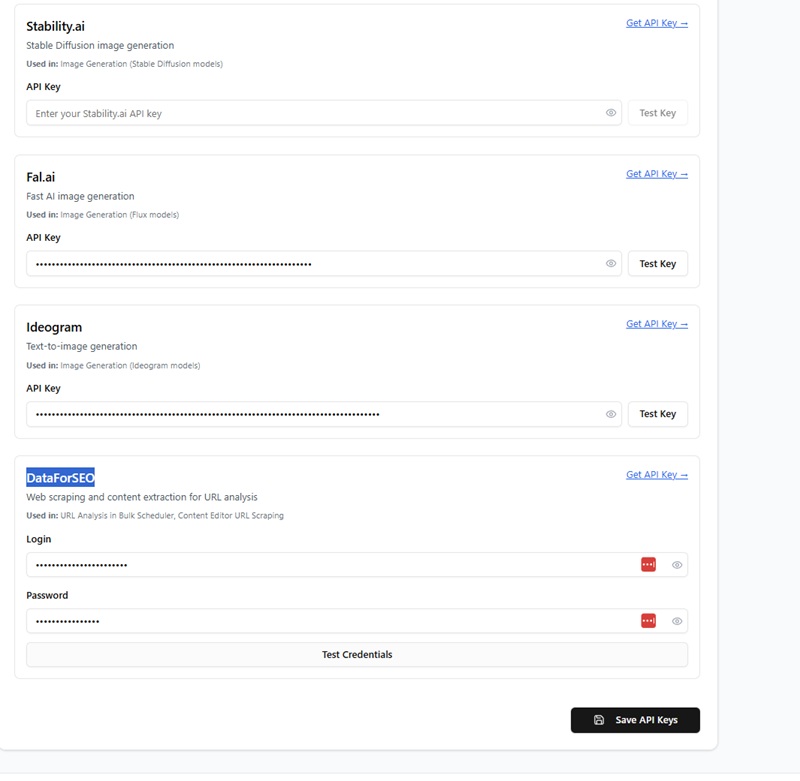
Make sure to save all your API keys after you add them — check the screenshot for reference.
How to Get an OpenAI API Key
Follow these steps to create your API key:
- Go to the OpenAI Platform
Visit: https://platform.openai.com - Sign in to your account
Log in using your existing OpenAI account.
If you don’t have one yet, create a free account. - Open the API Keys page
After logging in, click on your profile icon (top-right corner) and select:
View API keys - Create a new API key
Click the button:
Create new secret key - Copy your API key
A new key will appear. Copy it immediately and store it safely.
You won’t be able to view it again later. - Paste your API key into the app
Use the key in the tool or plugin where the manual instructs you. - Important:
Keep your API key private. Never share it publicly or expose it in code.
How to Get an OpenRouter API Key
Follow these steps to create your API key:
- Go to OpenRouter
Visit: https://openrouter.ai - Log in to your account
Use your Google account, GitHub account, or email login.
If you don’t have an account yet, create one—it’s quick. - Open your API Keys page
Once logged in, click your profile icon (top-right corner) and select:
API Keys - Create a new API key
Click the button:
Create Key
Choose a name so you can recognize it later. - Copy your API key
Your new key will be shown once.
Copy it immediately and store it in a safe place—you won’t be able to view it again. - Enter the key in your app
Paste the API key where the manual instructs (for example, in your settings panel). - Important:
Keep your key private. Do not share it, and do not expose it in public code.
How to Get an Anthropic (Claude) API Key
Follow these steps to create your Claude API key:
- Go to the Anthropic Console
Visit: https://console.anthropic.com - Log in or create an account
Use your email, Google account, or GitHub account to sign in.
If you don’t have an account yet, create one — it only takes a moment. - Open the API Keys page
Once you’re signed in, click your profile icon (top-right corner) and select:
API Keys - Create a new API key
Click:
Create Key
Give your key a name so you can identify it later. - Copy your API key
Anthropic will show your new key once.
Copy it immediately and store it safely — you cannot view the same key again later. - Paste the key into your app
Enter the API key where the manual instructs (for example, inside your settings panel). - Important:
Keep your Claude API key private. Never share it publicly or expose it in unprotected code.
How to Get a Stability.ai API Key
Follow these steps to create your API key:
- Go to the Stability.ai Developer Portal
Visit: https://platform.stability.ai - Log in to your account
Sign in with your email or your preferred login method.
If you don’t have an account yet, create one — it’s quick and free. - Go to the API Keys section
After logging in, open your profile menu (top-right corner) and select:
API Keys - Create a new API key
Click:
Create New Key
Give the key a name so you know what it is used for. - Copy your API key
Your key will be shown only once.
Copy it immediately and store it in a safe place. - Paste the key into your app
Enter the API key in the settings area where your tool or manual instructs you. - Important:
Keep your Stability.ai key private. Do not share it publicly or expose it in code files.
How to Get a Fal.ai API Key
Follow these steps to create your API key:
- Go to the Fal.ai Platform
Visit: https://fal.ai - Log in or create an account
Sign in with your Google account, GitHub account, or email.
If you don’t have an account yet, create one — it only takes a moment. - Open your Dashboard
Once logged in, you’ll be taken to your Fal.ai dashboard. - Go to the API Keys section
In the left-hand menu, click:
API Keys - Create a new API key
Click the button:
Create API Key
Give your key a recognizable name (e.g., “My App Key”). - Copy your API key
The key will be shown once.
Copy it right away and store it somewhere safe — Fal.ai won’t show the same key again. - Enter the key in your app
Paste the API key into the settings panel of the tool where the manual instructs you to use it. - Important:
Keep your Fal.ai API key private. Never post it publicly or include it in shared code.
How to Get an Ideogram API Key
Follow these steps to create your API key:
- Go to the Ideogram AI Platform
Visit: https://ideogram.ai - Log in or create an account
Sign in with Google or create an account using your email.
If you’re new to Ideogram, registration takes less than a minute. - Open the Settings page
Once logged in, click on your profile icon (top-right corner) and select:
Settings - Go to the API Keys section
In the Settings menu, click on:
API Keys - Create a new API key
Click:
Generate API Key
Give the key a name so you’ll recognize it later. - Copy your API key
The key will be displayed only once.
Copy it immediately and store it securely — Ideogram will not show it to you again. - Add the key to your app
Paste your API key in the settings area where your manual instructs (for example, inside the API configuration panel). - Important:
Keep your Ideogram API key private. Never share it publicly or expose it in unprotected files.
How to Get a DataForSEO API Key
Follow these steps to create your DataForSEO API credentials:
- Go to the DataForSEO Dashboard
Visit: https://app.dataforseo.com - Log in or create an account
Use your email to sign in.
If you don’t have an account yet, create one — the trial account is activated instantly. - Open your Account Settings
Once logged in, click your profile icon (top-right corner) and select:
Account → API Credentials - Find your API Username & Password
DataForSEO uses API login + API password instead of traditional API keys.
Here you will see:- API Username
- API Password
- Copy your credentials
Copy both values and store them safely — you will need them for authentication. - Enable the API (if required)
Make sure your API access is active.
Some new accounts require you to top up a small credit before full API use is unlocked. - Add your credentials to your app
Paste the API Username and API Password where your manual instructs (usually in the SEO tool’s settings panel). - Important:
Keep your DataForSEO credentials private. Never share them publicly, and never expose them directly in your code.